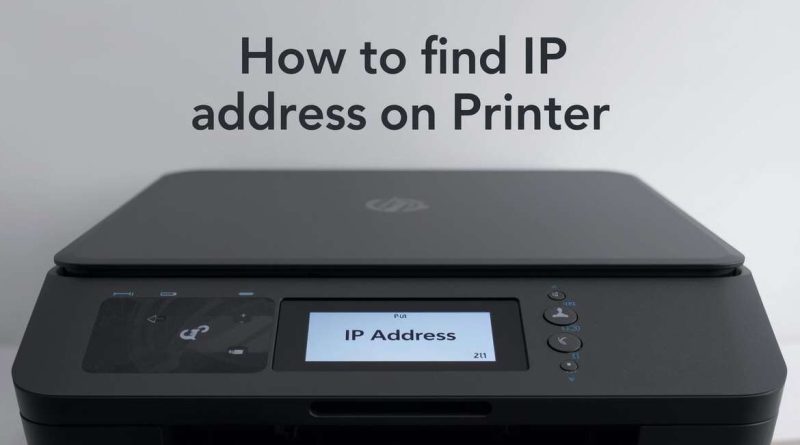
How to Find IP Address on Printer (Easy Guide)
If you use a wireless printer at home, school, or in an office, you may sometimes need its IP address. For example, you might want to connect it to Wi-Fi, fix printing errors, or add it to a new computer. However, many people get confused because printers do not always show the IP address clearly. The good news is that you can find it in several easy ways, even if you are not a tech expert. In this complete guide, you will learn step by step how to find the IP address on almost any printer, including HP, Canon, Epson, Brother, and more.
What Is a Printer IP Address?
A printer IP address is a unique number that identifies your printer on a network.
It looks something like this:
- 192.168.1.25
Just like your phone or laptop has an IP address on Wi-Fi, your printer also gets one when it connects to your router.
Because of this address, computers can locate the printer and send print jobs correctly.
Why Do You Need a Printer’s IP Address?
Knowing your printer’s IP address can help in many situations, such as:
- Adding the printer manually on Windows or Mac
- Fixing printer offline issues
- Connecting the printer to a new Wi-Fi network
- Accessing printer settings through a browser
- Troubleshooting network printing problems
So, finding the IP address is often the first step in solving printer connection issues.
Method 1: Find IP Address Using the Printer Display Panel
Most modern wireless printers have a screen or control panel.
This is usually the easiest way.
Steps:
- Turn on your printer
- Go to Menu or Settings
- Open Network Settings
- Choose Wi-Fi Settings or TCP/IP
- Look for IP Address
You will usually see something like:
- IP Address: 192.168.0.105
Different brands may label it slightly differently, but the IP address is always in the network section.
Method 2: Print a Network Configuration Page
If your printer does not have a display screen, you can print a network report.
This report shows all network details, including the IP address.
Steps (General):
- Press the Home or Menu button
- Go to Reports or Network Setup
- Select Network Configuration Page
- Print the page
On the printed sheet, look for:
- IPv4 Address
- IP Address
- Network Address
This method works well for HP, Epson, Brother, and Canon printers.
Method 3: Find Printer IP Address on Windows PC
If your printer is already connected to your Windows computer, you can check its IP address easily.
Steps:
- Open Control Panel
- Click Devices and Printers
- Find your printer
- Right-click it and select Printer Properties
- Go to the Ports tab
- Look for an IP address listed next to the active port
This will show the printer’s current network IP.
Method 4: Use Command Prompt (Windows)
Windows also lets you find printer IP addresses using simple commands.
Steps:
- Press Windows + R
- Type cmd and press Enter
- Type this command:
arp -a
This will display devices connected to your network.
You can also try:
ping printername
However, this method works best for advanced users.
If you want to understand networking better, topics like Wireless Security Techniques can help you manage home Wi-Fi devices safely.
Method 5: Find Printer IP Address on Mac
Mac users can also find printer IP addresses in system settings.
Steps:
- Click the Apple menu
- Open System Settings (or System Preferences)
- Go to Printers & Scanners
- Select your printer
- Click Options & Supplies
- Look for the printer’s IP address or location info
Mac often shows the IP in the printer’s network details.
Method 6: Check Your Router’s Connected Devices List
Your router keeps a list of all connected devices, including printers.
This is a very useful method if your printer screen is not working.
Steps:
- Open a browser
- Type your router IP (usually):
- 192.168.1.1
or - 192.168.0.1
- Log in to the router admin panel
- Go to Connected Devices or DHCP Client List
- Find your printer name
- Note the IP address shown next to it
This works for almost all printers connected via Wi-Fi.
Method 7: Use the Printer’s Web Interface
Many network printers allow you to open their settings in a browser.
Once you know the IP, you can type it like this:
- http://192.168.1.25
This opens the printer control page where you can:
- Check ink levels
- Update Wi-Fi settings
- Manage print jobs
This is especially useful in office environments.
How to Find IP Address for Popular Printer Brands
Here are quick tips for common brands:
HP Printers
- Go to Wireless Settings → Network Info
- Or print a Wireless Test Report
Canon Printers
- Open LAN Settings → TCP/IP Settings
Epson Printers
- Print a Network Status Sheet
Brother Printers
- Menu → Network → TCP/IP → IP Address
Each brand follows the same general network setup structure.
Common Problems When Finding Printer IP Address
Sometimes users face issues such as:
Printer Not Connected to Wi-Fi
If the printer is offline, it may not have an IP address yet.
IP Address Keeps Changing
Routers assign dynamic IPs, so the printer’s IP may change after restarting.
To fix this, you can set a static IP in router settings.
Printer Not Showing in Devices List
Make sure the printer and computer use the same Wi-Fi network.
Final Thoughts
Finding the IP address of a printer is easier than most people think.
You can locate it through:
- Printer settings menu
- Network configuration page
- Windows or Mac settings
- Router connected devices list
Once you know the IP address, you can troubleshoot printing issues, connect new devices, and manage printer settings more effectively.
For anyone using wireless devices at home, understanding basic networking also improves security and performance.
FAQs
You can print a network configuration page or check your router’s connected devices list to see the printer’s IP address.
Yes, most routers assign dynamic IPs, so the printer’s IP may change unless you set a static IP address.
HP printers usually show the IP address in Network Settings or on a Wireless Test Report that you can print.
Yes, you can enter the printer IP address in a browser to open its web interface and manage settings.